




Custom Map
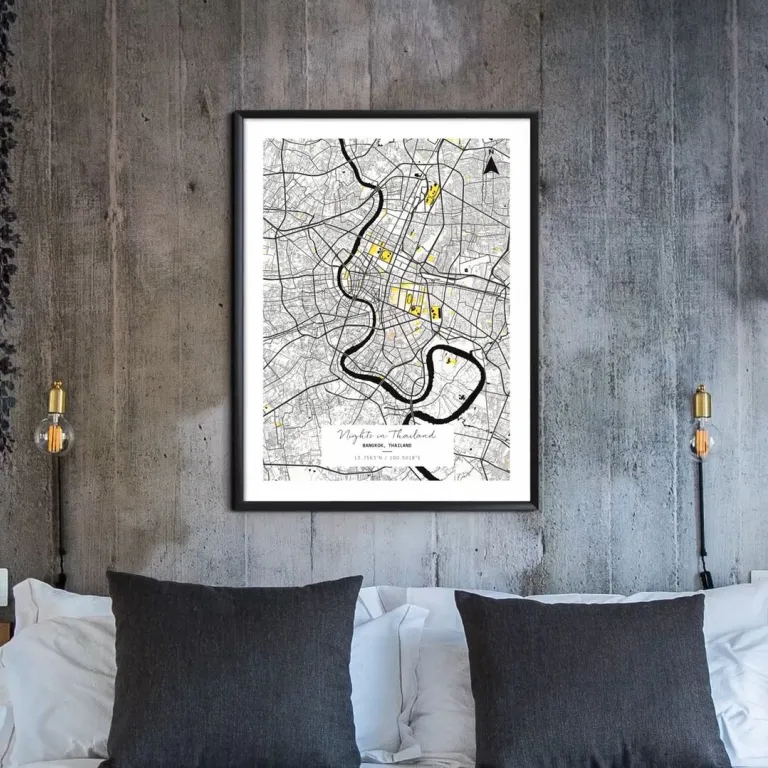
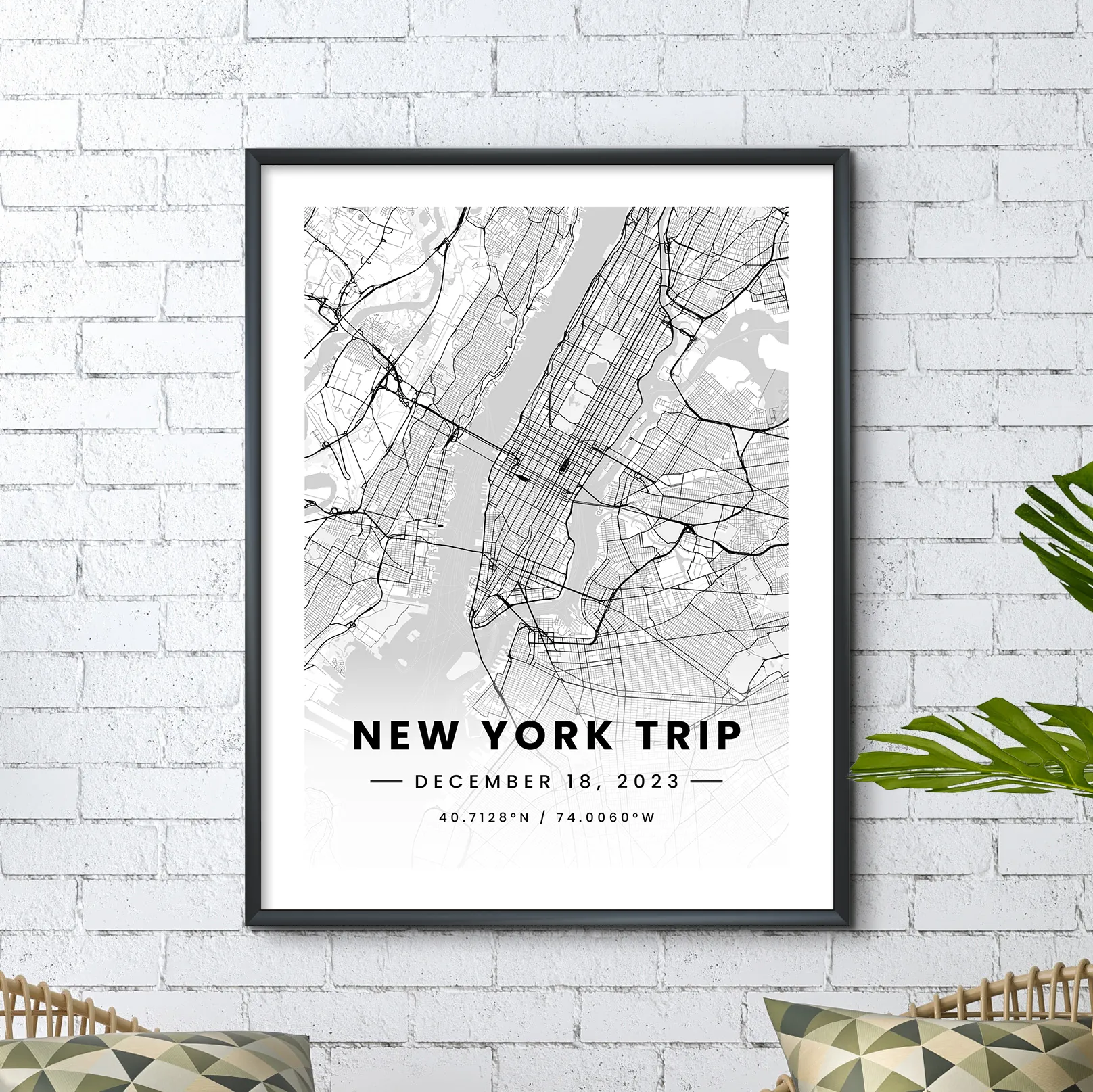
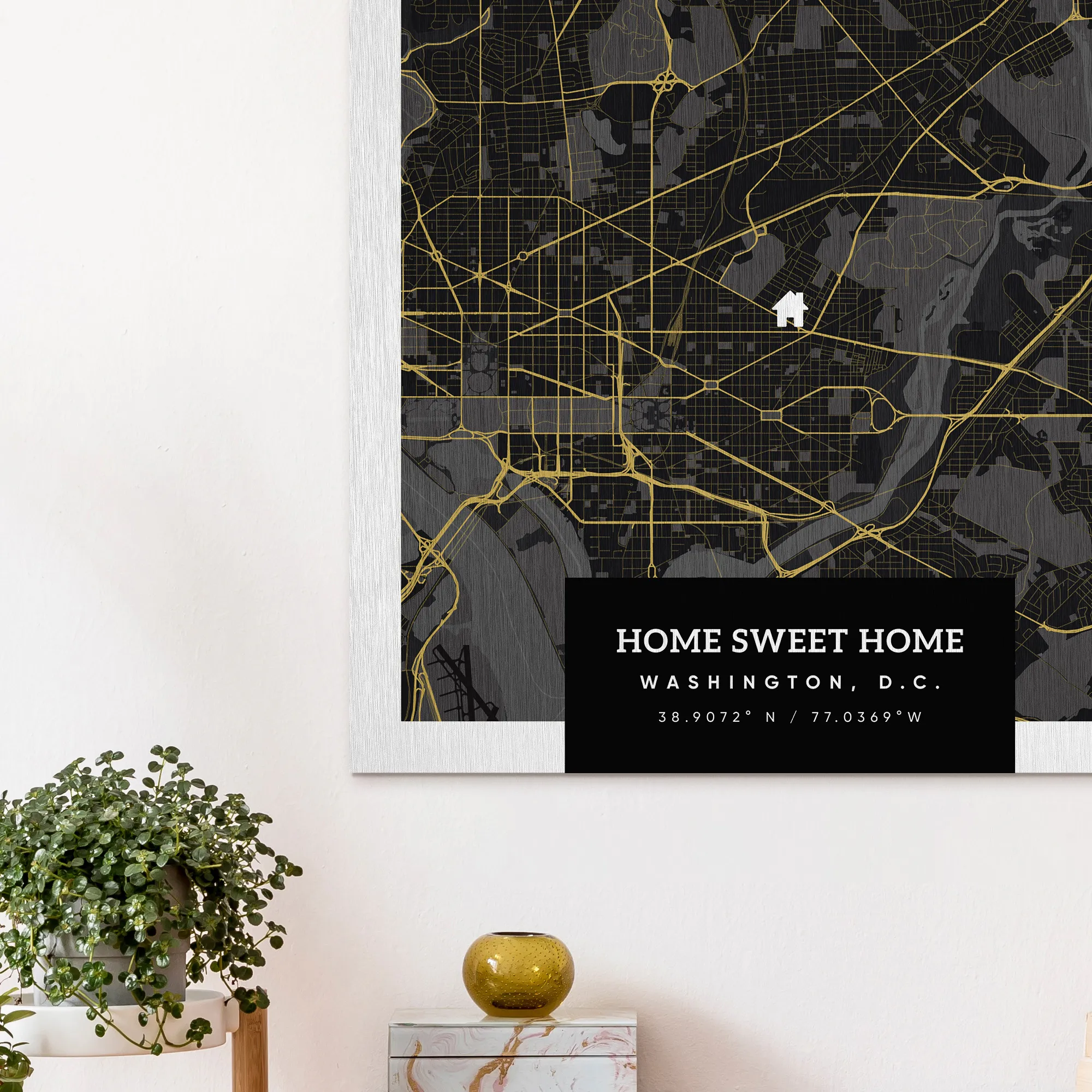
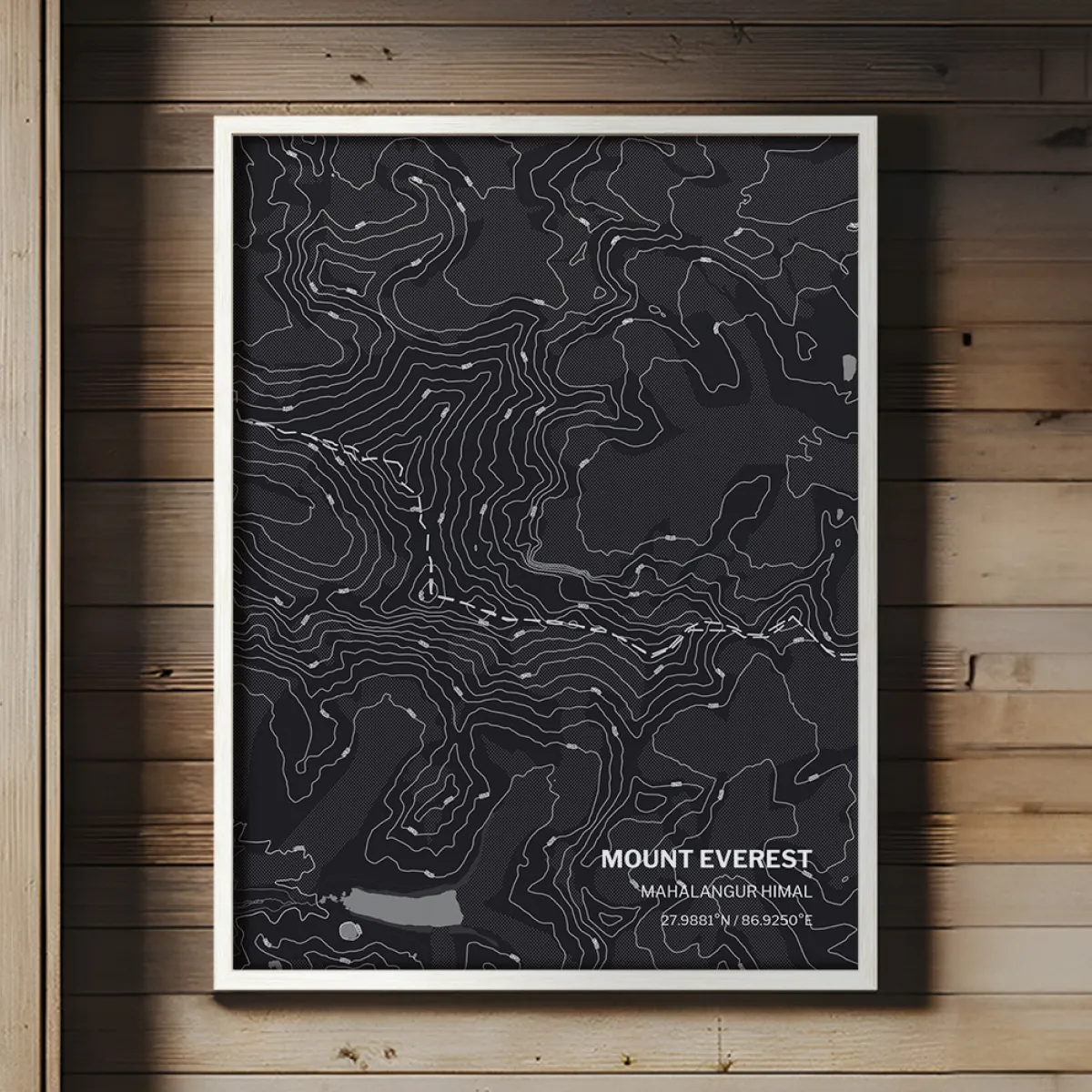
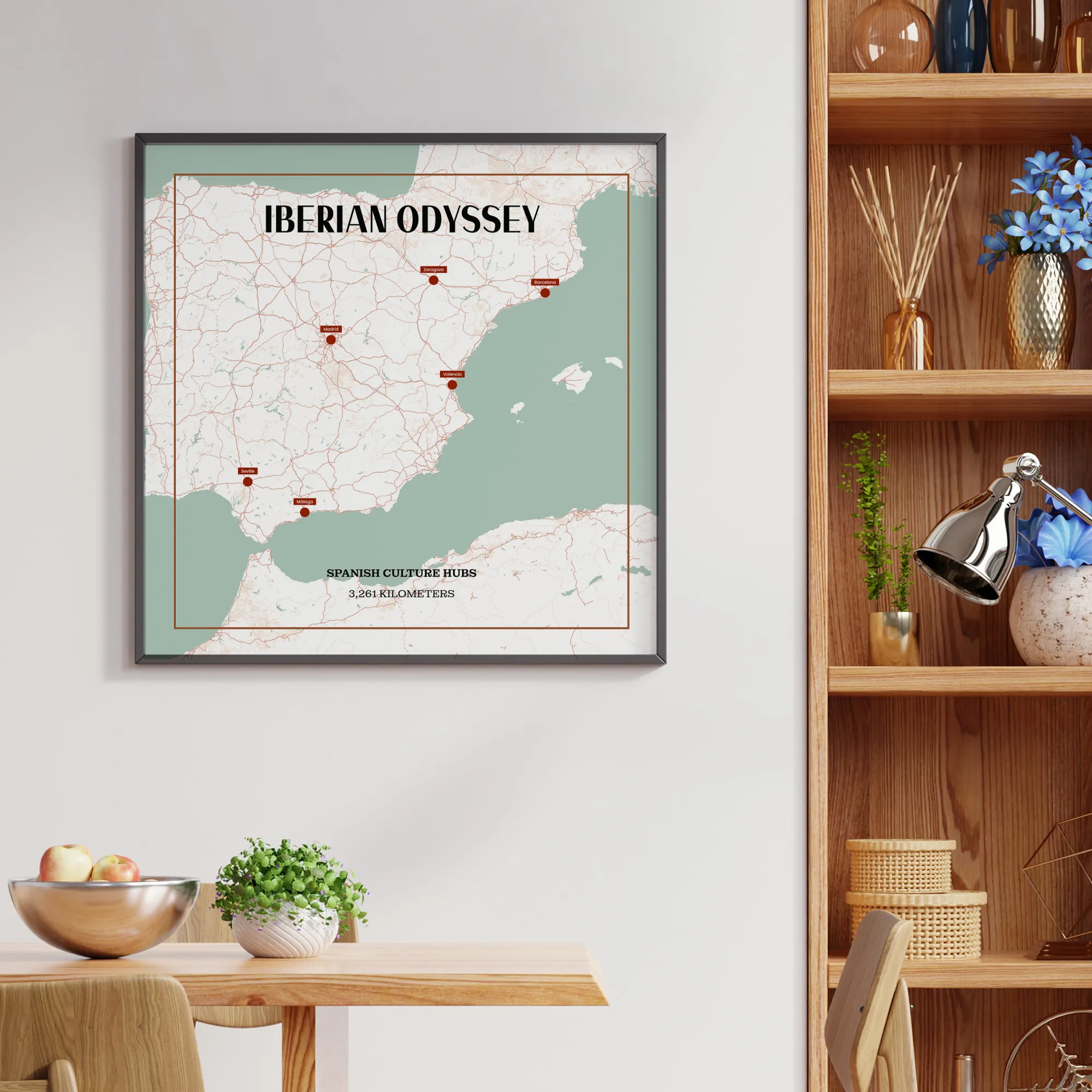
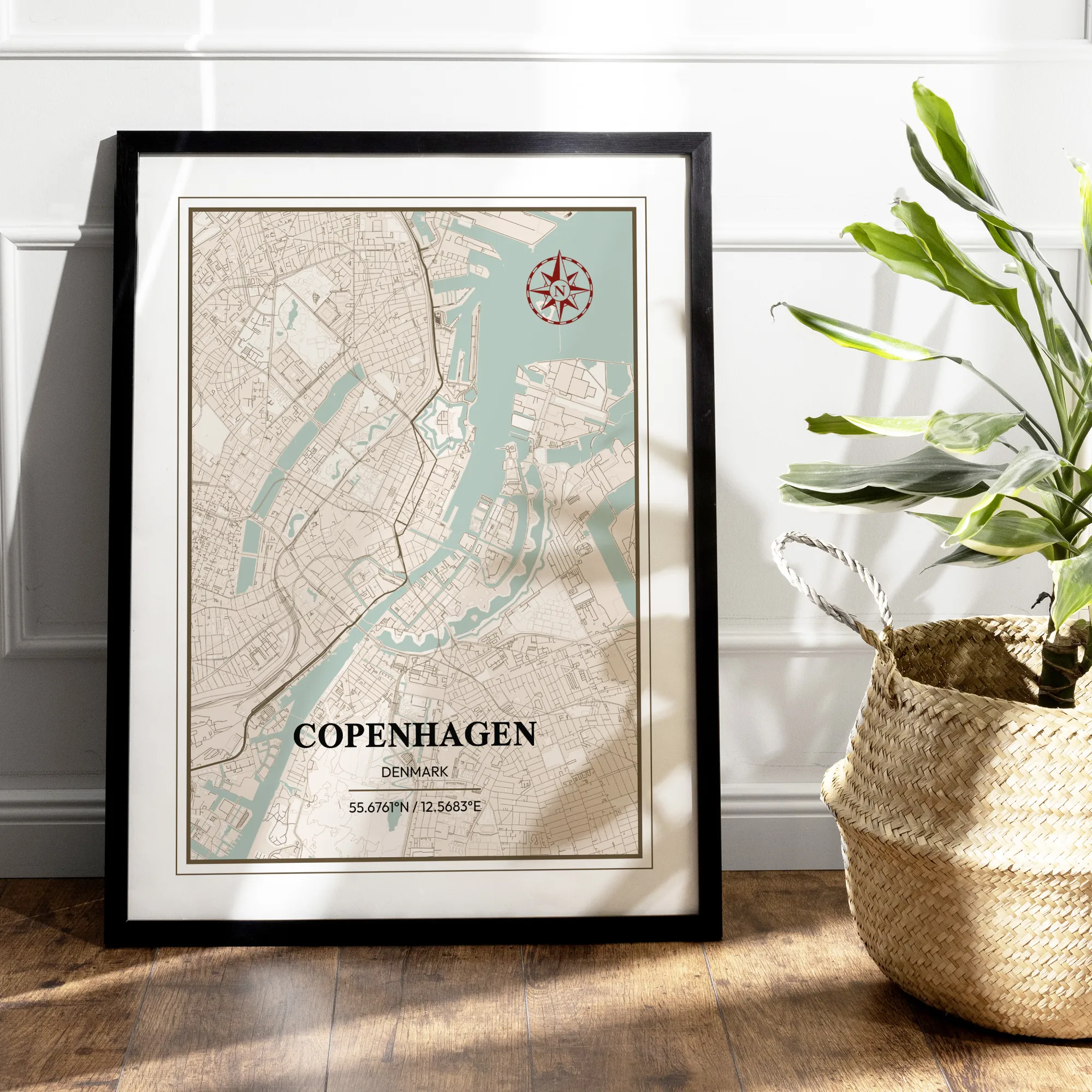
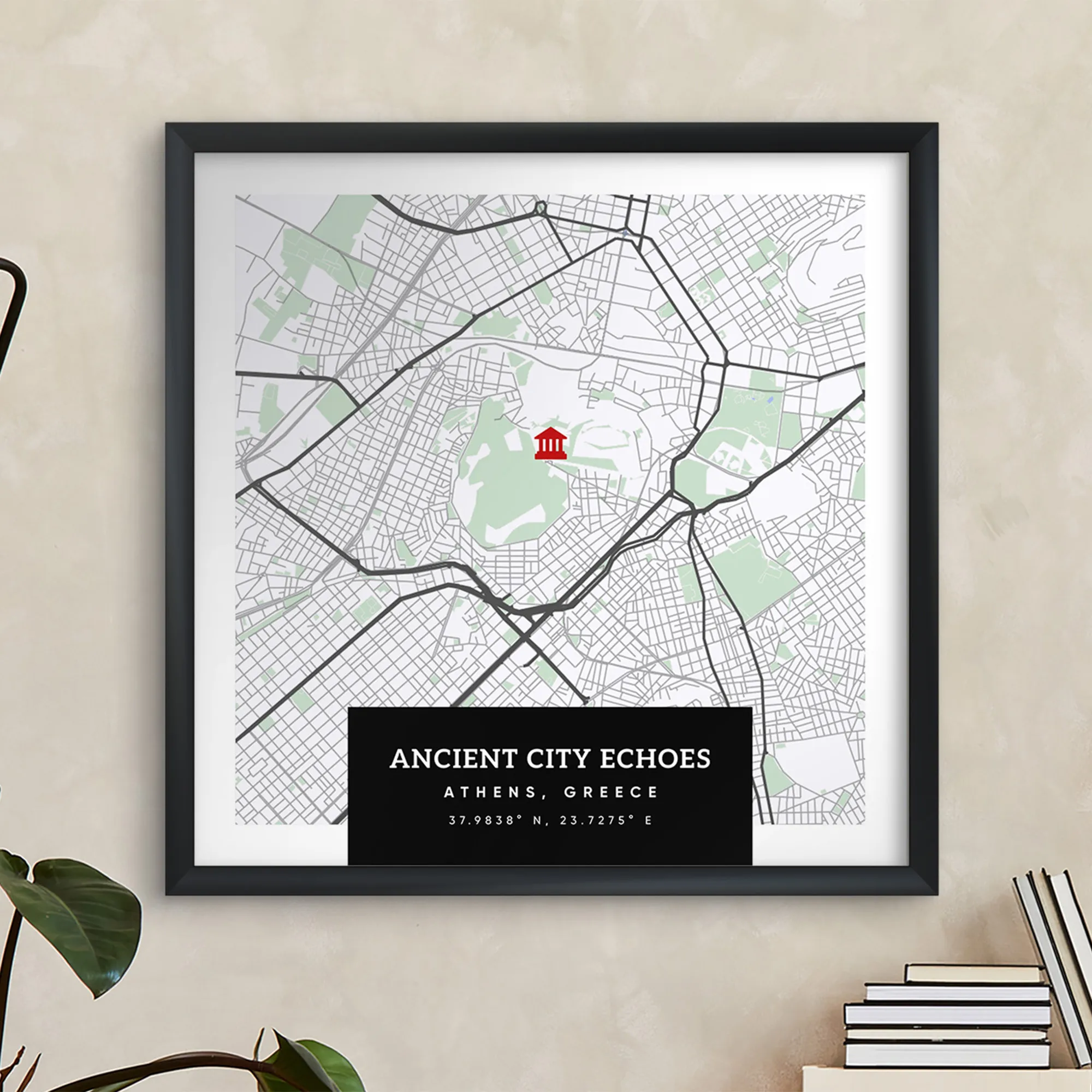
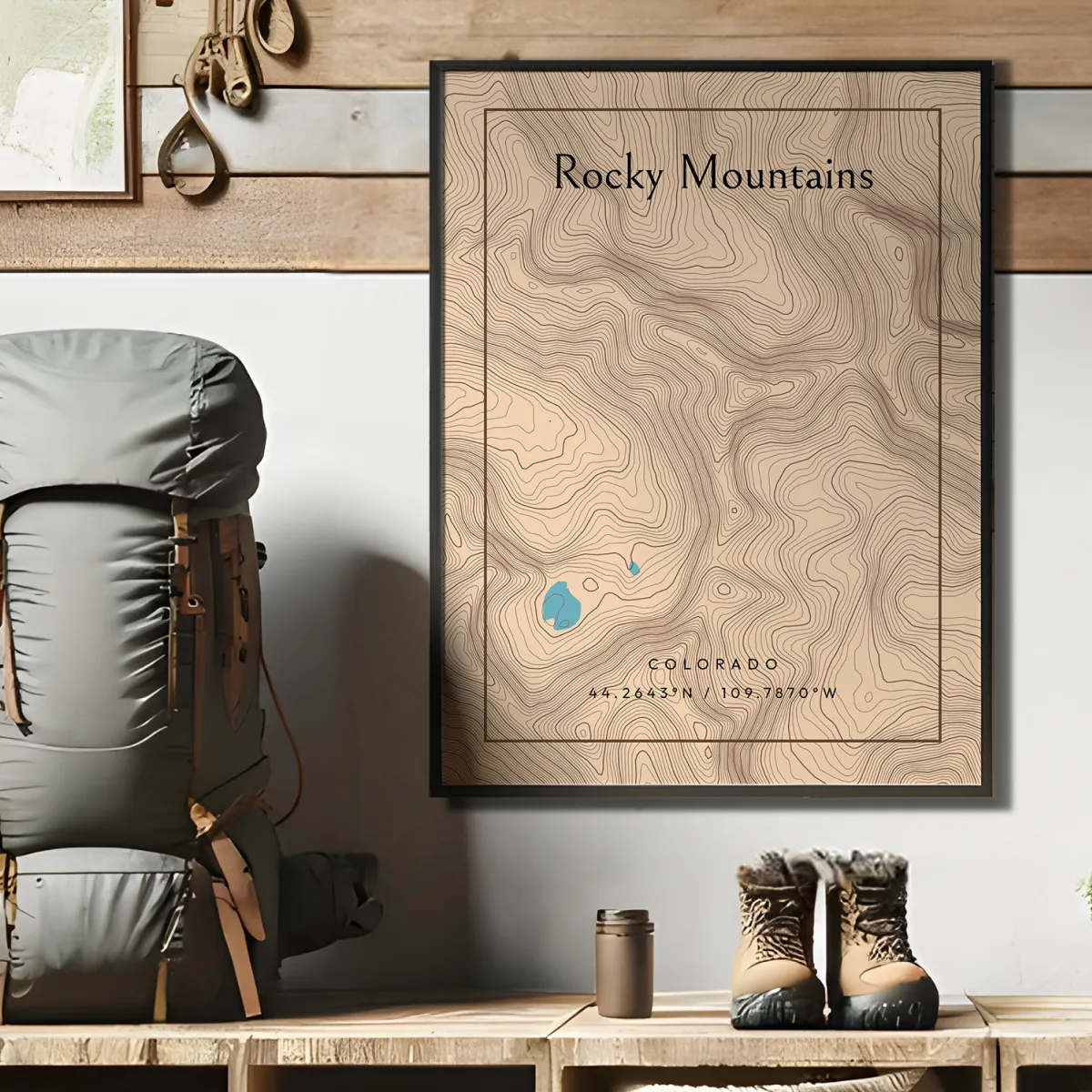
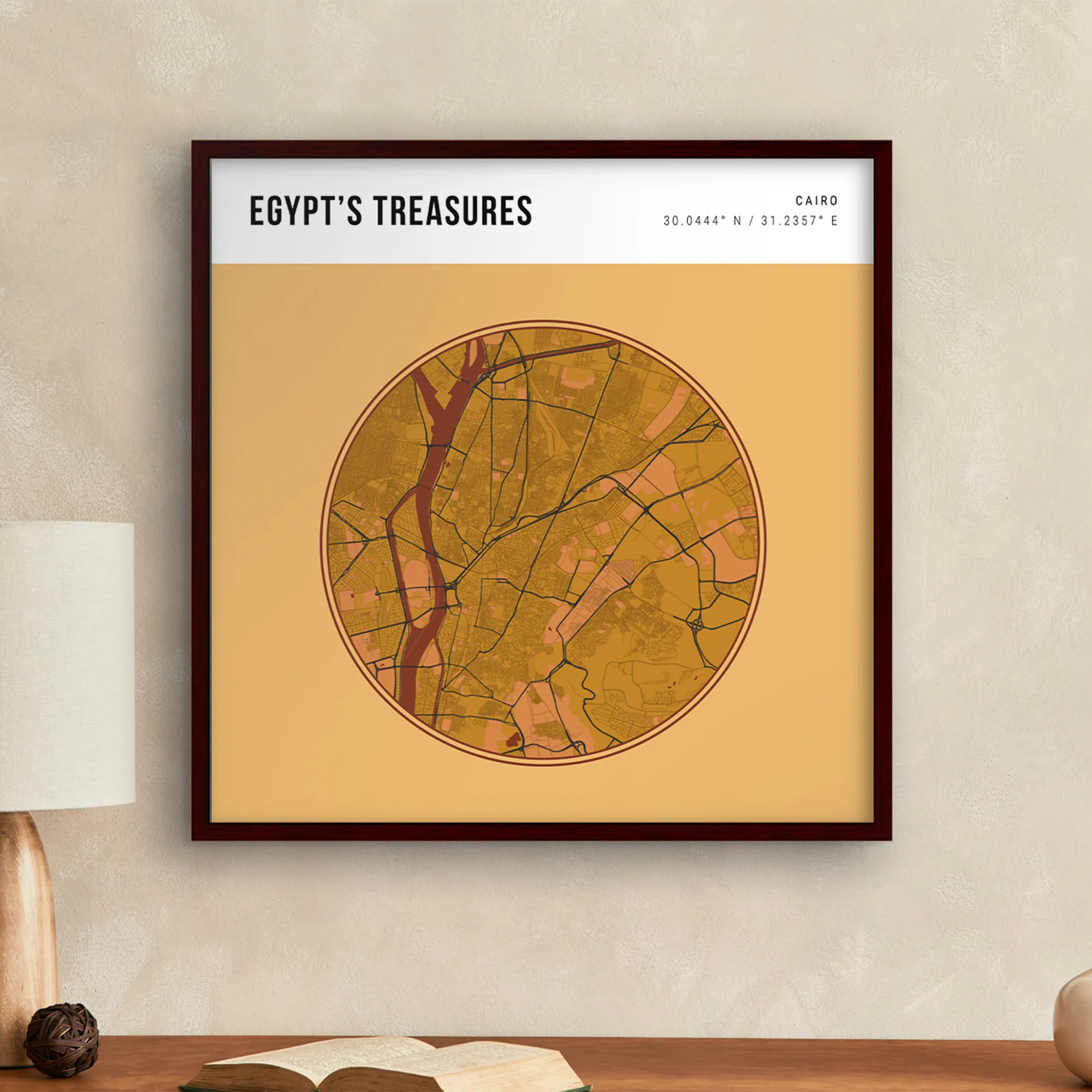
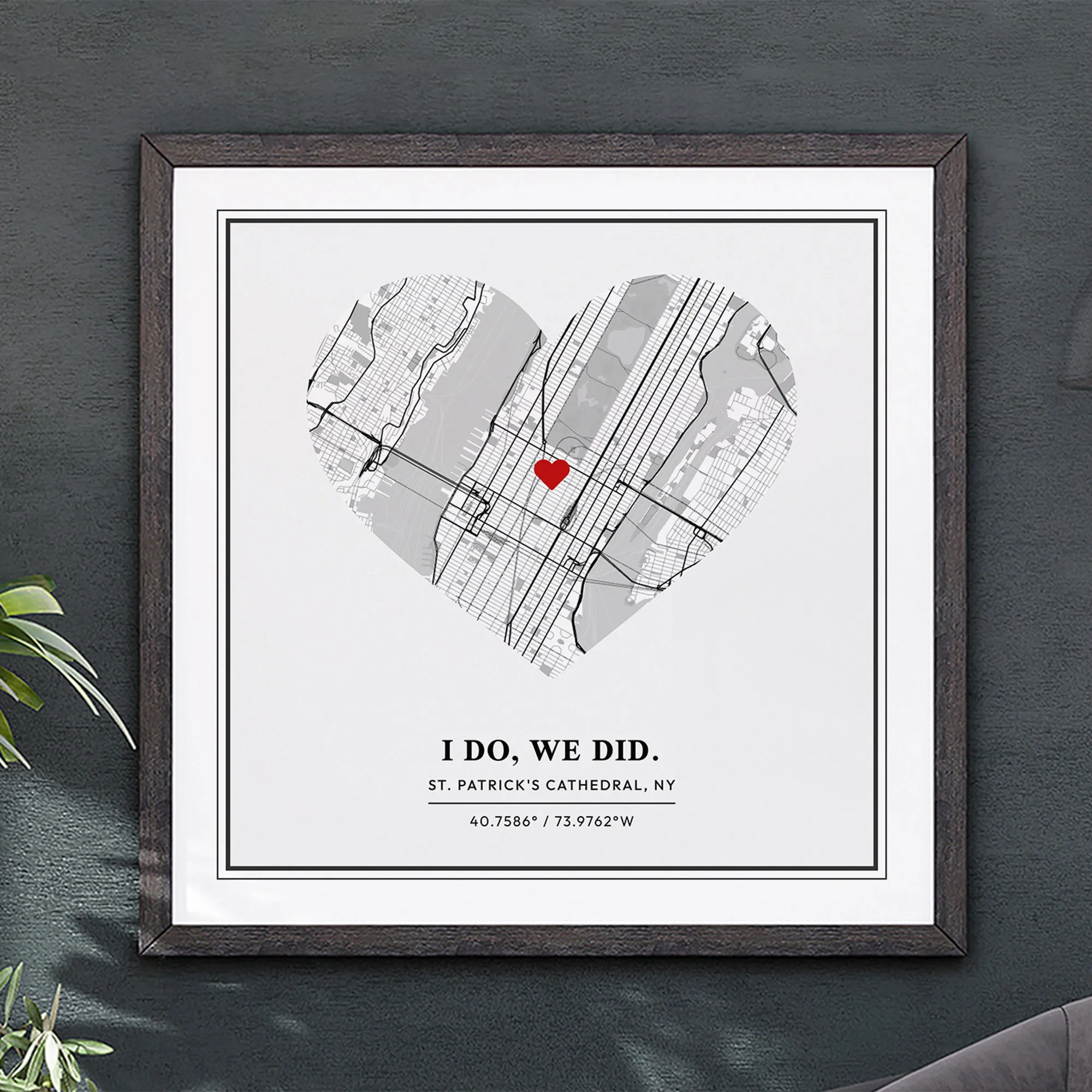
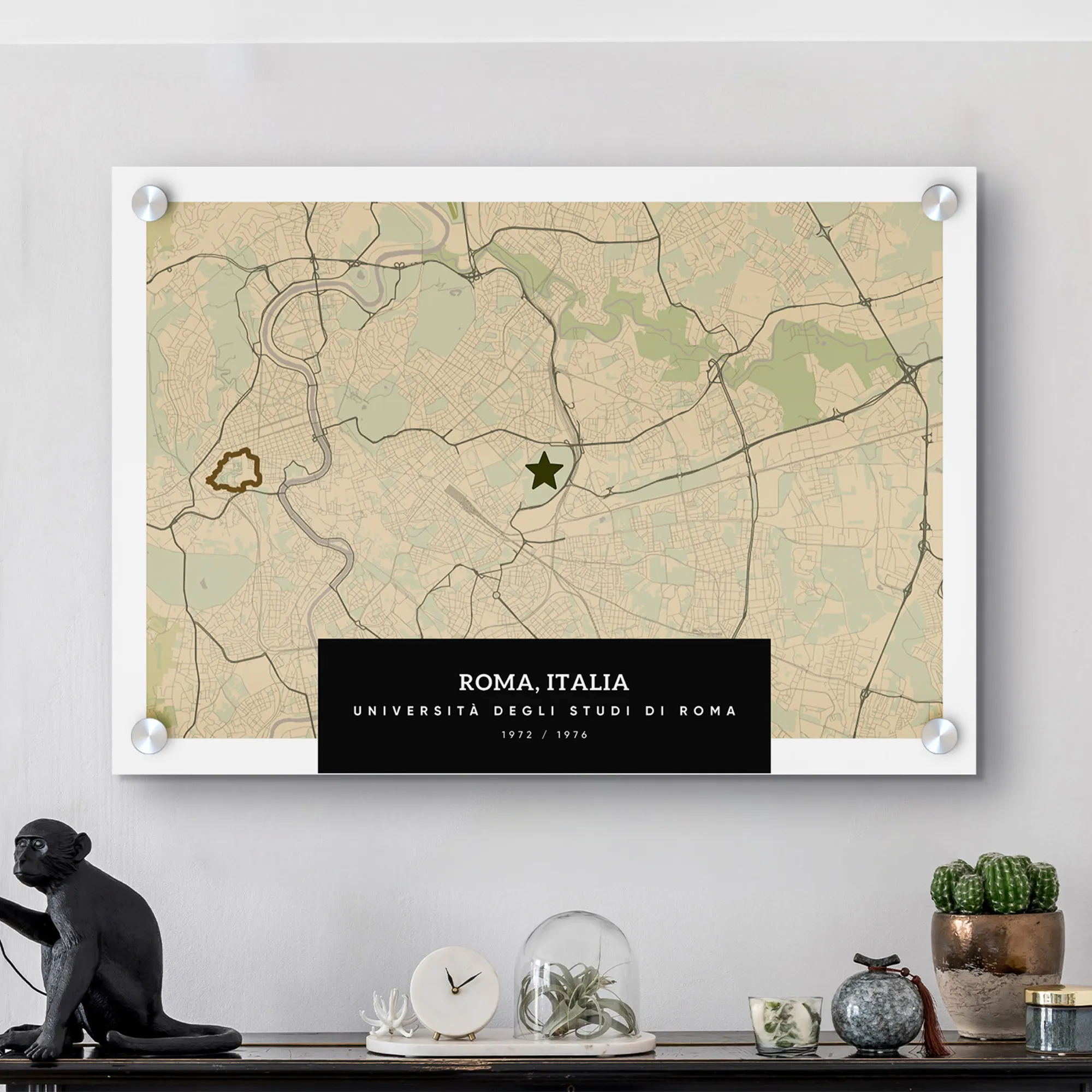
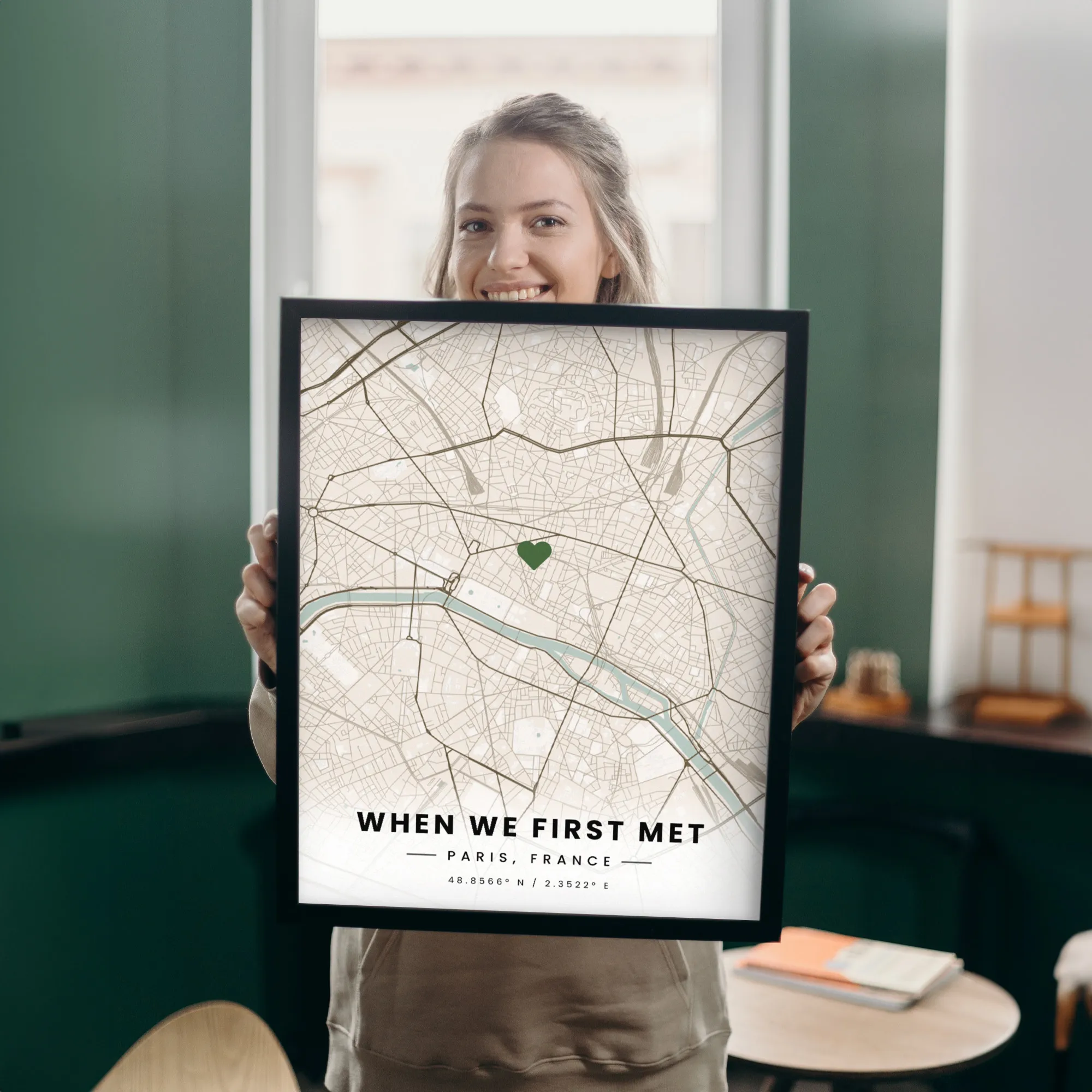
Create a custom map poster with MixPlaces to celebrate life's adventures and give a thoughtful gift for your home. Design a moving, accurate street map of your favorite city, neighborhood, or landmark to honor a special place or memory. Use MixPlaces' mobile or web app to personalize your print by adding color, changing layouts, and overlaying shapes and tags. Create a lasting piece of artwork that elevates your memories and commemorates your journey with MixPlaces. Start designing your personalized map today!
Create a custom map poster with MixPlaces in just three steps. Choose a layout, personalize your map with a special moment or memory, and get creative by customizing your wall art with premium framing and hanging options. Use MixPlaces' mobile app and web editor to easily create a unique and timeless piece of art that reflects your experiences and memories.
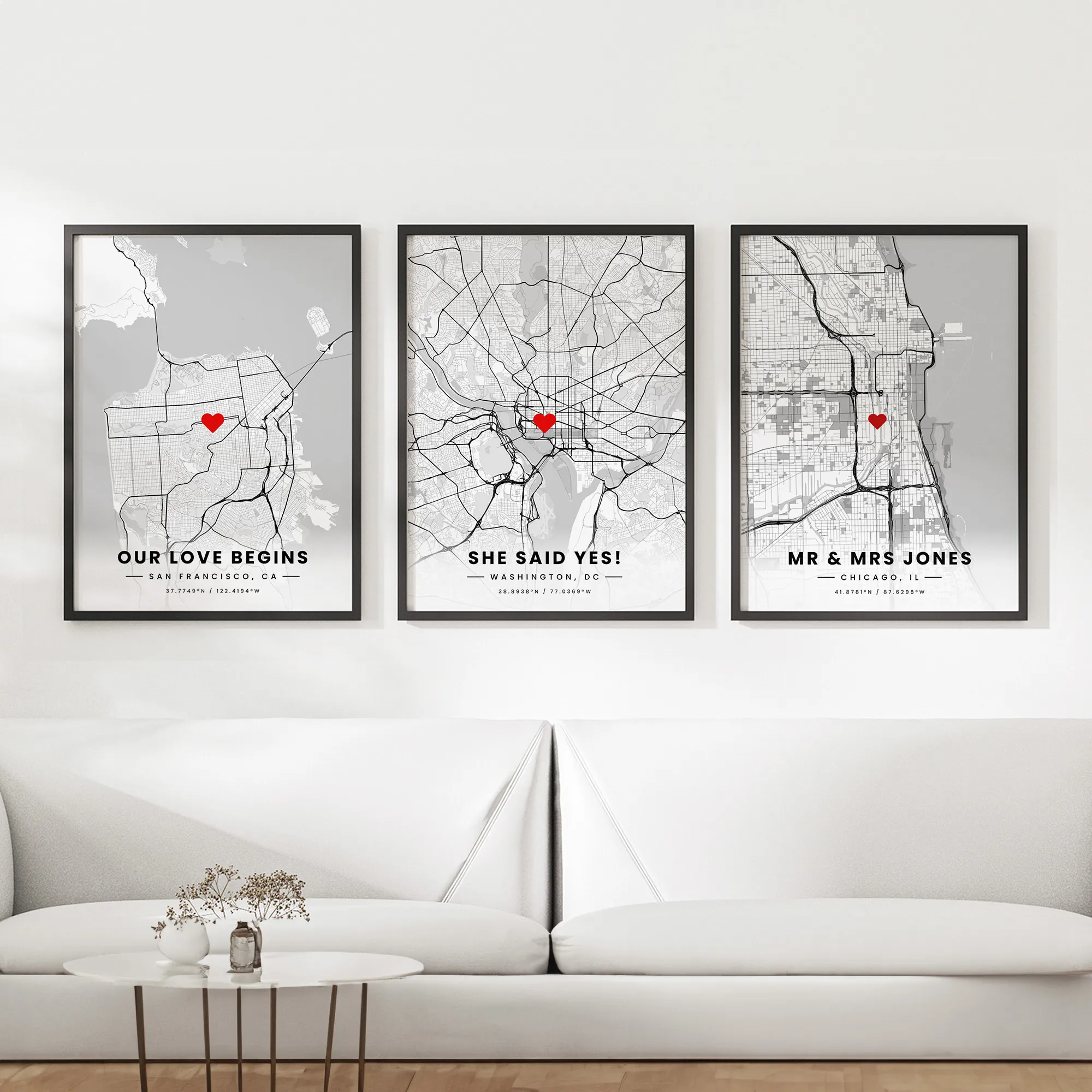
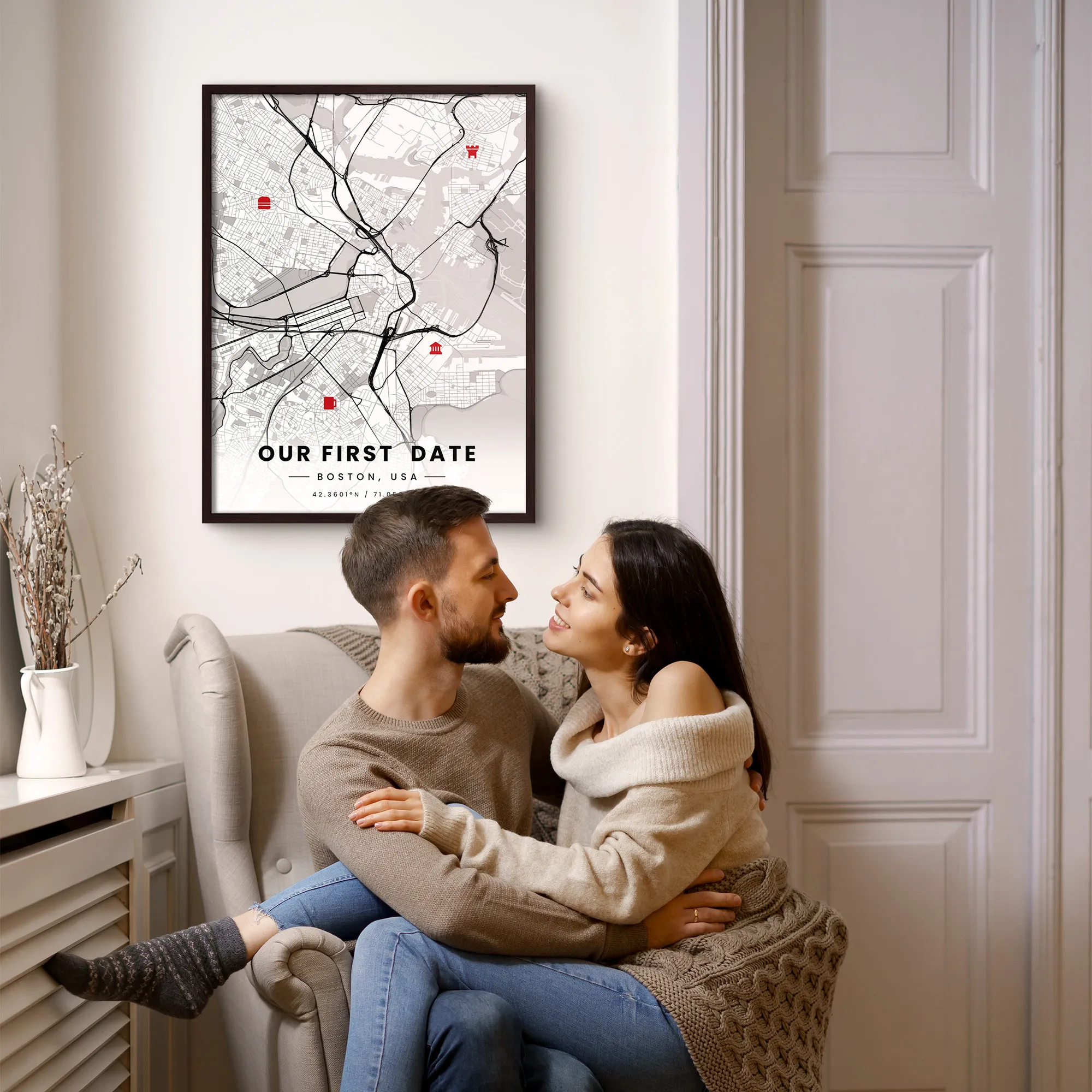
Our custom maps are perfect for almost any occasion, be it a wedding, birthday, or other meaningful events, and they make great gifts even if all you want to say is “thank you” or “I love you.”
Guaranteed Premium Quality Prints: At MixPlaces, we guarantee premium quality prints that are made to last. We use only the finest materials, from our premium frames to high-quality printing, to preserve your memories in the highest quality. We are dedicated to ensuring your satisfaction with every step of the creation process and will do everything we can to make it right if you're not happy with your creation. With our passion for city street maps, we hope you will cherish your custom map poster for years to come.

Fast & free shipping worldwide

Eco-friendly production and shipping

Made just for you

Make it right guarantee
Choose any location around the world, or multiple locations
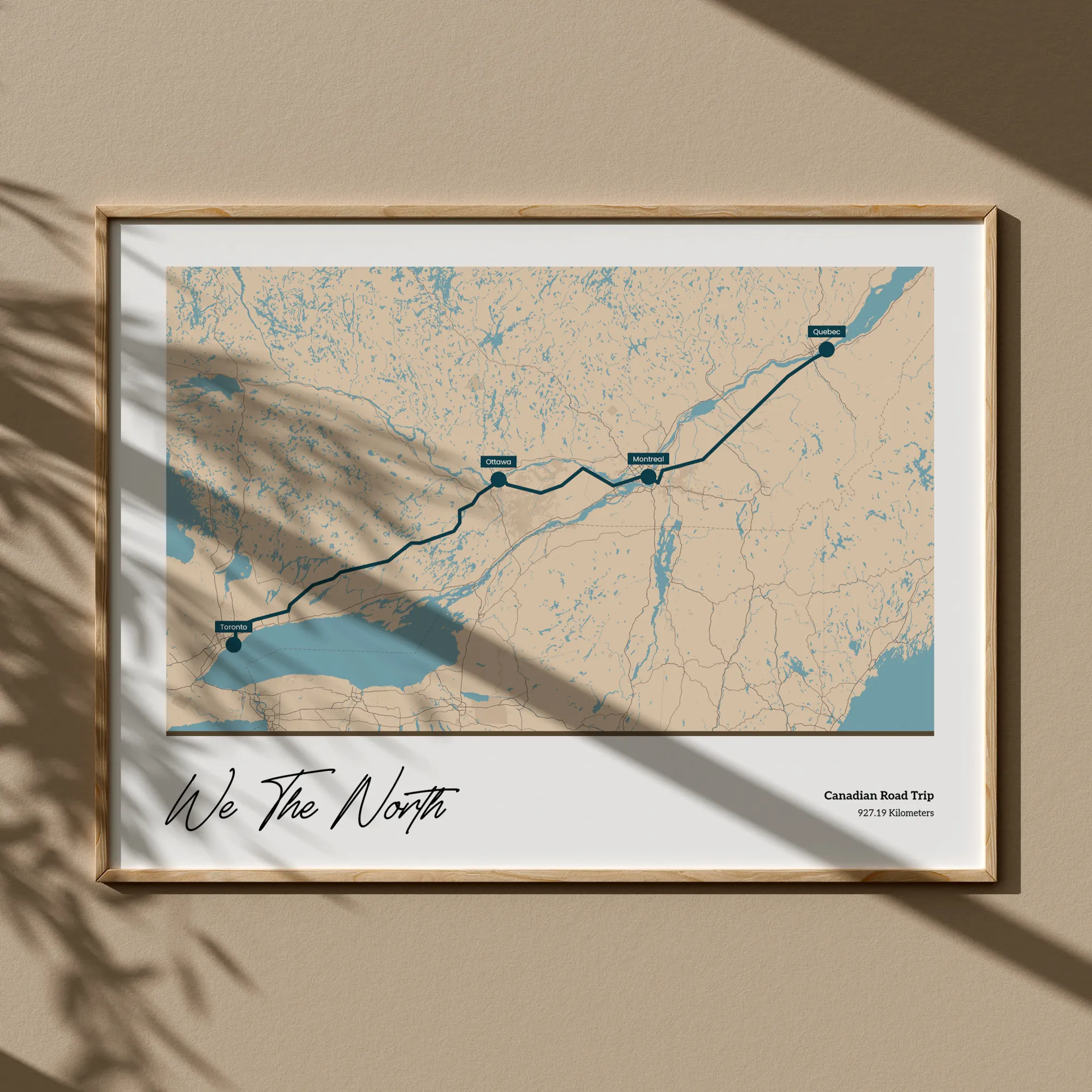
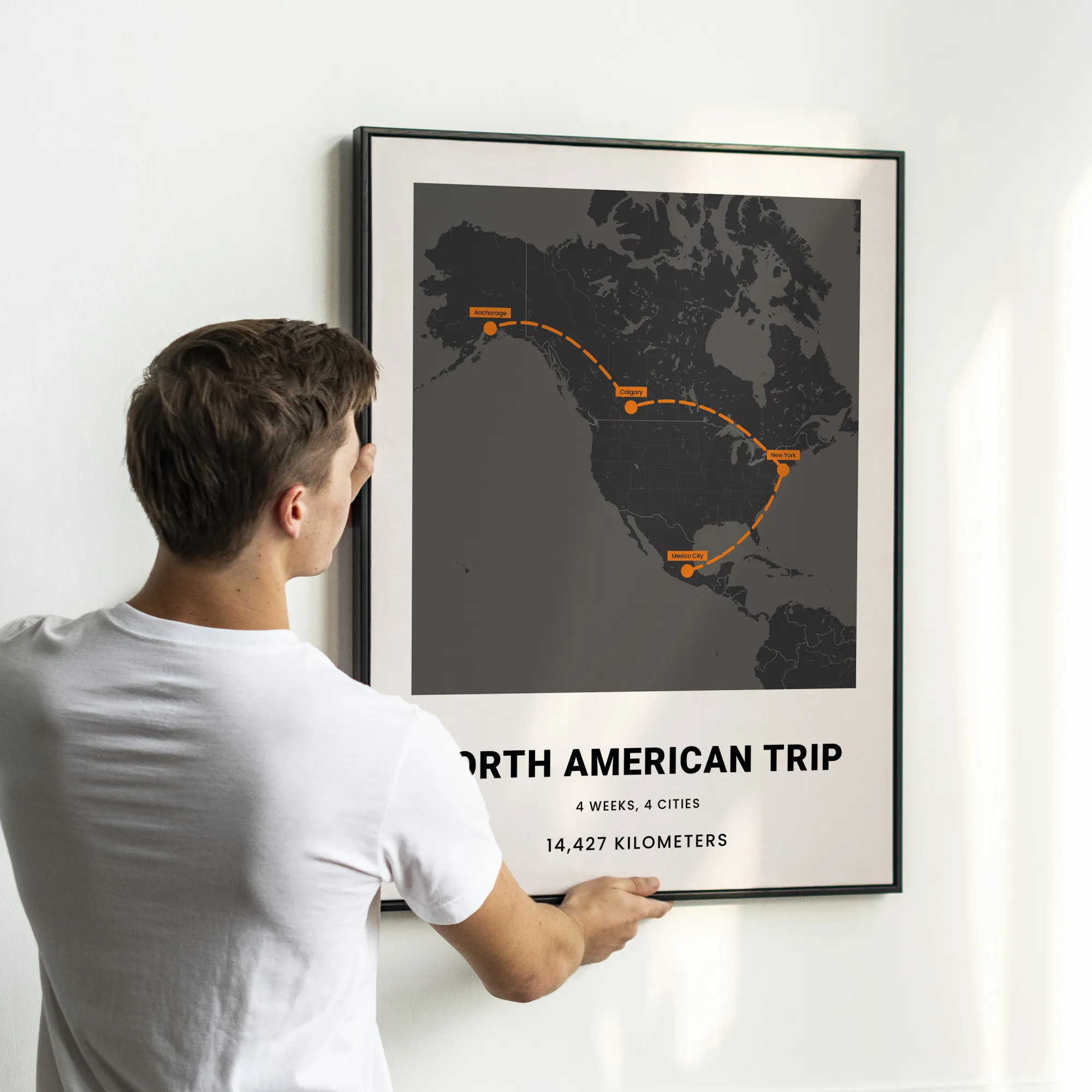
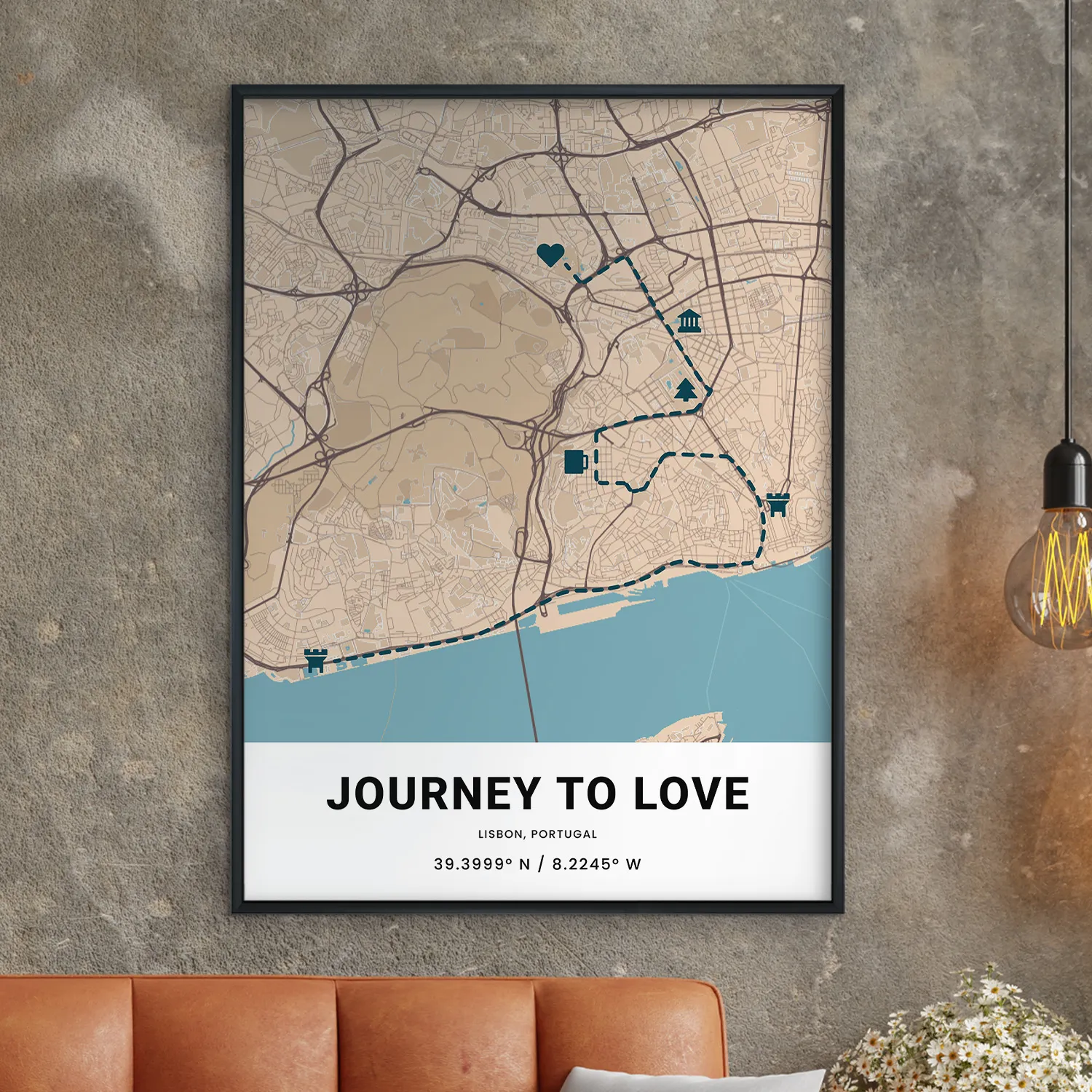
Create a custom street map using any location worldwide, or add multiple locations and connect them to show the journey and destination.
Personalize your text
Note the date, place, or add a special message showing how you feel. Add a quote, say “I love you,” or put a secret message just for them.
Choose from hundreds of design options
Select from dozens of layouts, over 20 colors patterns, 15 font families, shape overlays, and more. Find a theme or style that speaks to your personality.
Mark your map with personality and style
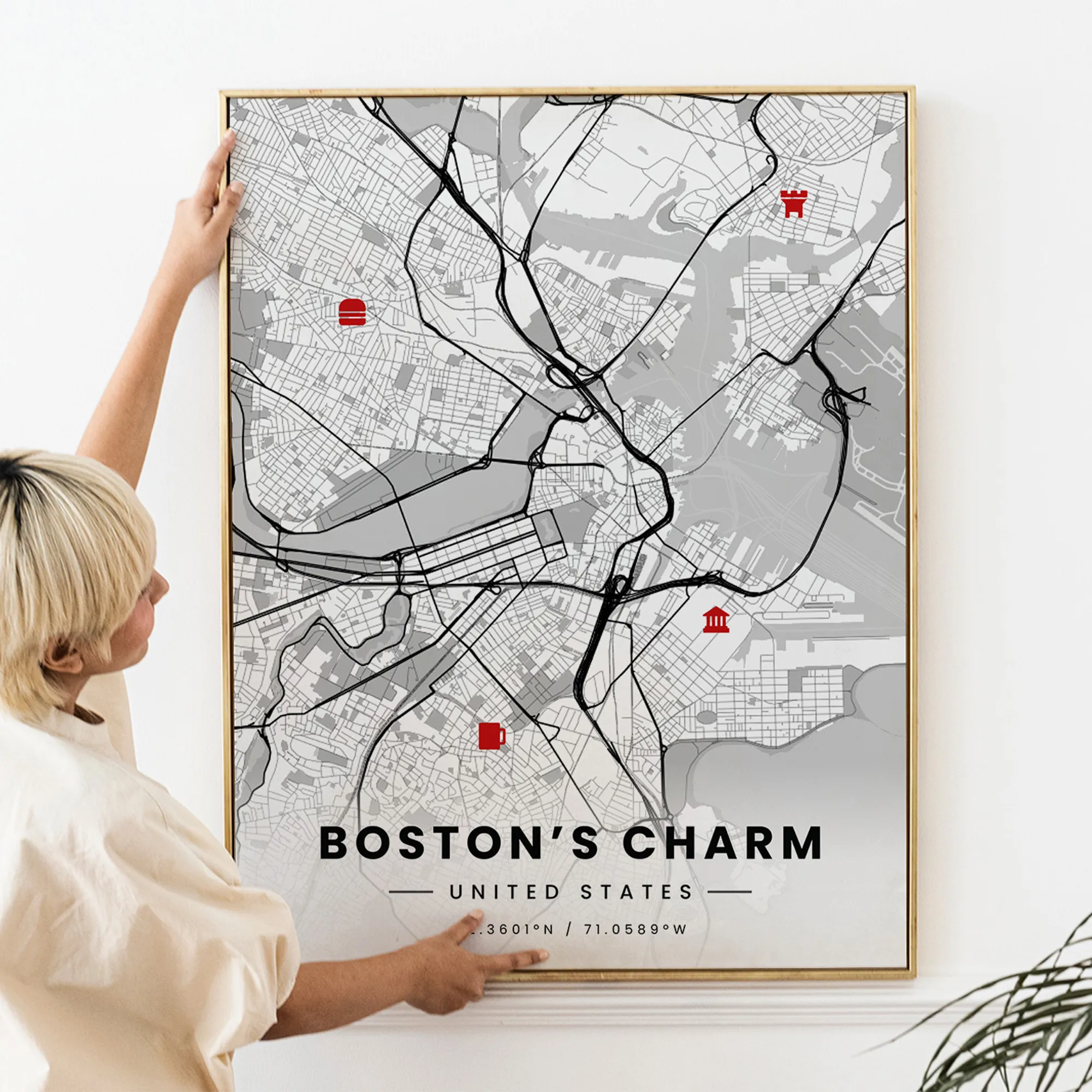
Add flair and personality to your map with customizable location markers, colorful connectors, and a compass to show you which way you’re going.
Finish your poster in style
Our selection of printing formats, frames, and hanging materials, available in canvas, matte, wood, metal, and more is perfect for your home or office.
Build on your phone, tablet, or the web
Our intuitive editor saves your work, so you can design on your phone and finish on your desktop, moving seamlessly between any device.
Review and approve before production
Our quality guarantee lets you review a proof of your design to ensure everything is to your standards before the final product arrives.
Give as a gift for any occasion
Custom street maps make perfect gifts for every occasion including weddings, anniversaries, birthdays, births, or simply to say, “I love you.”
We ship worldwide and produce locally, with a supply chain that reaches every corner of the globe. Our goal is to get your product to you as quickly as possible.
Fulfillment
Depending on several factors, including the size and scope of your order, your location, and the time of season, we generally require 1–4 business days to create your wall art products.
- Acrylic: 2-4 business days
- Canvas: 1-4 business days
- Frames: 1-4 business days
- Metallic: 2-4 business days
- Posters: 1-4 business days
Shipping
Our products reach billions of people throughout the world, a task we accomplish with pinpoint accuracy no matter the time of year. On average, delivery takes an additional 1-4 business days (after fulfillment), though times may vary depending on the factors listed above.
- Standard shipping: estimated delivery in 4-22 business days
- Express shipping: estimated delivery in 3-4 business days
For detailed information on shipping times to your country, click the “Learn More” button below and read about shipping on our Delivery Times page.
Packaging methods vary depending on several factors including artwork type, size, country of origin, and shipping destination. For information on shipping and delivery times visit our Delivery Times page.
Below is the most up-to-date information regarding packaging for our wall art products:
Posters
Posters are packaged flat up to A4 (21x29.7cm/8x12) and arrive in a tube if above A4.
- The following countries use mailing tubes: DK, DE, NO, CH, FR, UK, AU, SG, NL, BE, AT
- Brazil, Canada, and the US use triangular/rectangular tubes.
Wooden Frames
Wooden framed posters are packaged in the frame and come mounted and ready to hang. These frames are available in multiple colors.
Metal Frames
Metal framed posters come mounted and ready to hang. These frames are only available in black.
Matte Posters
Matte Poster with Metal Frames are packaged separately from the frame in an inner paperboard (max 10 posters per paperboard).
Canvas, Aluminum, Wood, and Acrylic Posters
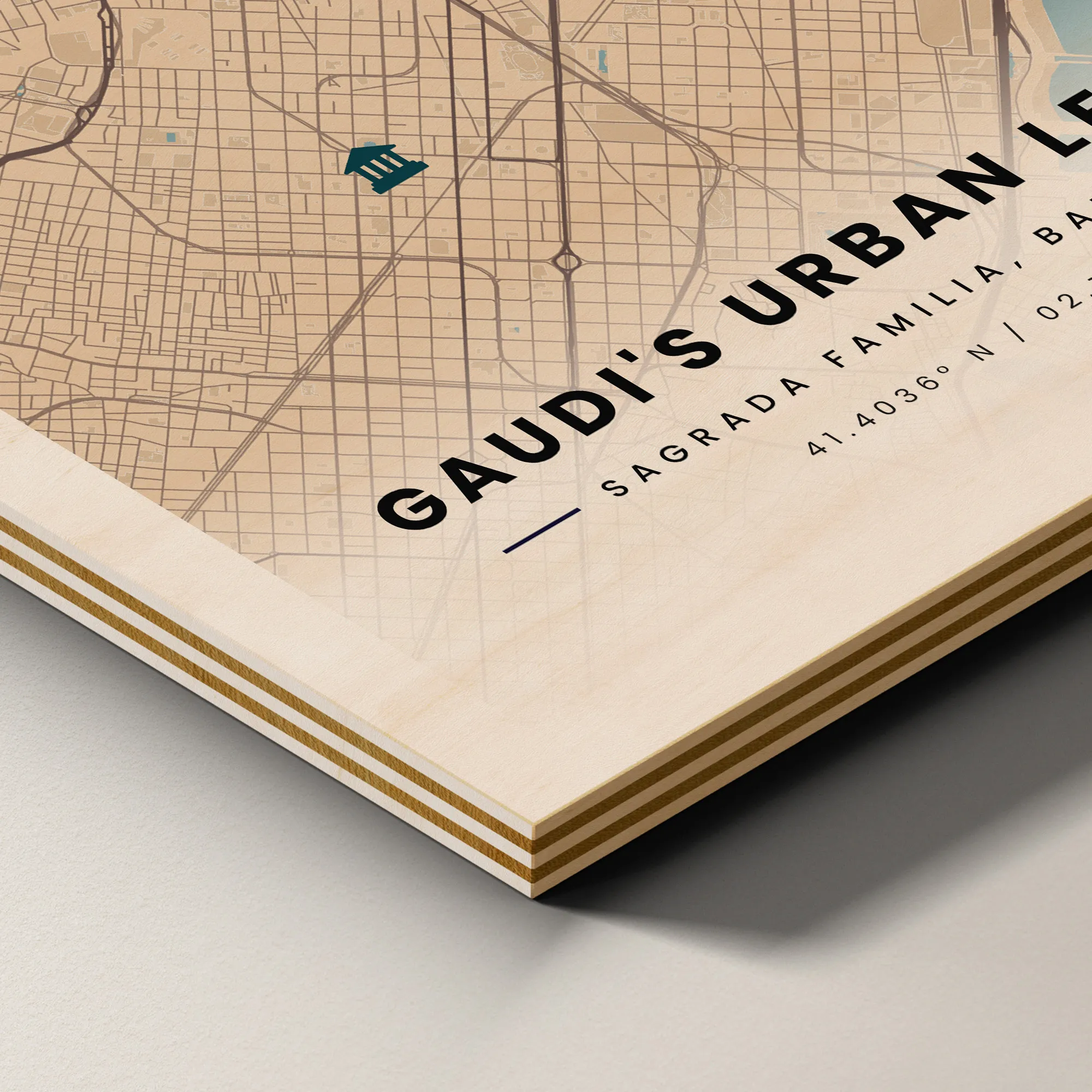
Canvas, Aluminum, Wood, and Acrylic come packaged with strong edges for protection.
- All are wrapped in bubble wrap or kraft paper.
- Acrylic prints will be covered with an additional protective film on the face of the image.
- Protective film may appear milky, green, or blue and can be mistaken for scratches or bubbles.
Custom Map
Featured Framed Wall Art Designs

Trending Framed Wall Art Designs
Newest Framed Wall Art Designs
Give Your Custom Map Personality
Customizing your city street map is so easy
that you'll never have to ask for directions!

Change Colors & Styles
Brighten your memories and add your own style.
Select Multiple Layouts
Personalize your map with our most popular designs.
Choose a Compass
Find yourself with our stunning directional compass.
Add Multiple Locations
Celebrate the journey with two or more locations.
I highly recommend these prints. I’m a little on the older side, and I will admit I’m not “great” with “computers”, so I was worried that customizing my map would be a little tricky. My daughter moved away recently and I made her a map of our house to take with her. The process was pretty straight-forward and the materials seem to be good.
I prefer your app maker over the competition because it’s ease of use. On the other map makes I spent half a day making a street art for my family, only to have the computer lose it. When I spoke to Denise there she didn't even try to help. Here, I created a great personalized map and everyone loved it. Everyone. MixPlaces is a winner!
Frequently Asked Questions
No. It'll look even better! Don't get us wrong, what you see on your screen will be exactly reproduced on your print, but between you and us, your screen just can't do it justice.
We print on high-quality, museum-grade paper that'll last upwards of two centuries before discoloring or decomposing. We use archival ink and 300 DPI professional printing.
So, yes, what you see on your screen is accurate, but when you see it in person, you'll be blown away by its beauty!
No. It'll look even better! Don't get us wrong, what you see on your screen will be exactly reproduced on your print, but between you and us, your screen just can't do it justice.
We print on high-quality, museum-grade paper that'll last upwards of two centuries before discoloring or decomposing. We use archival ink and 300 DPI professional printing.
So, yes, what you see on your screen is accurate, but when you see it in person, you'll be blown away by its beauty!
Of course!
If you only set one location during the Set Location process, you can head over to Location and click on the Add another location option right below your initial location. In the popup, simply type in your additional location or drag and drop a pin on the map and repeat this process until you have added every location desired.
From there, head over to the Routes section in Location and toggle on the button for Connect Locations.
If you had already selected multiple locations previous to editing, simply head over to Location and then Routes, where you'll see the same Connect Locations button to toggle on.
We currently offer three route types:
Driving Routes: Driving routes display journeys from one place to another via car, making them perfect for mapping out road trips and other long-haul drives. Our system uses real traveling routes, including roads and highways, to create a perfect, accurate map.
Airplane Routes: Airplane routes display lines from one destination to another as taken by airplanes. Our flight routes are 100% accurate and display real paths airplanes take.
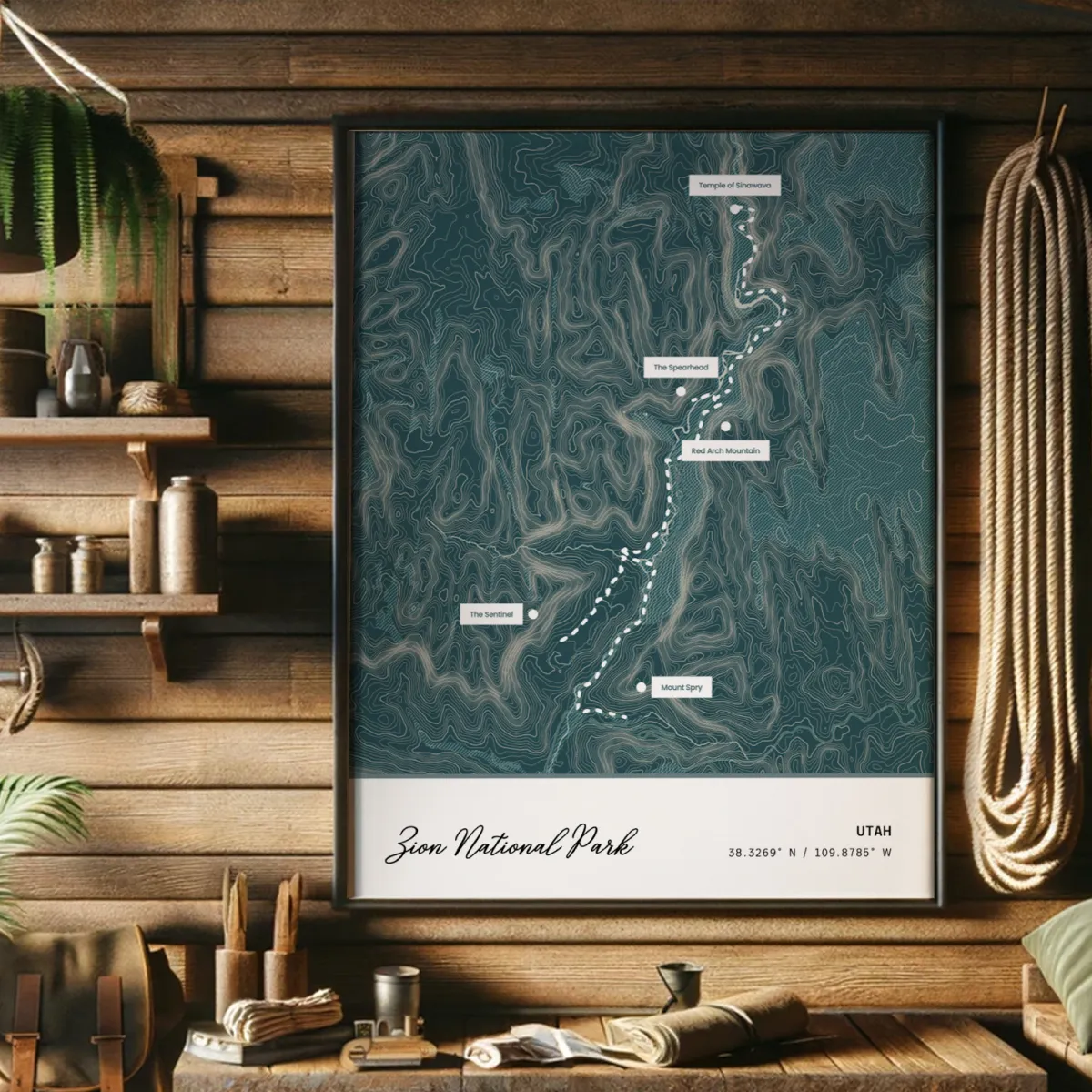
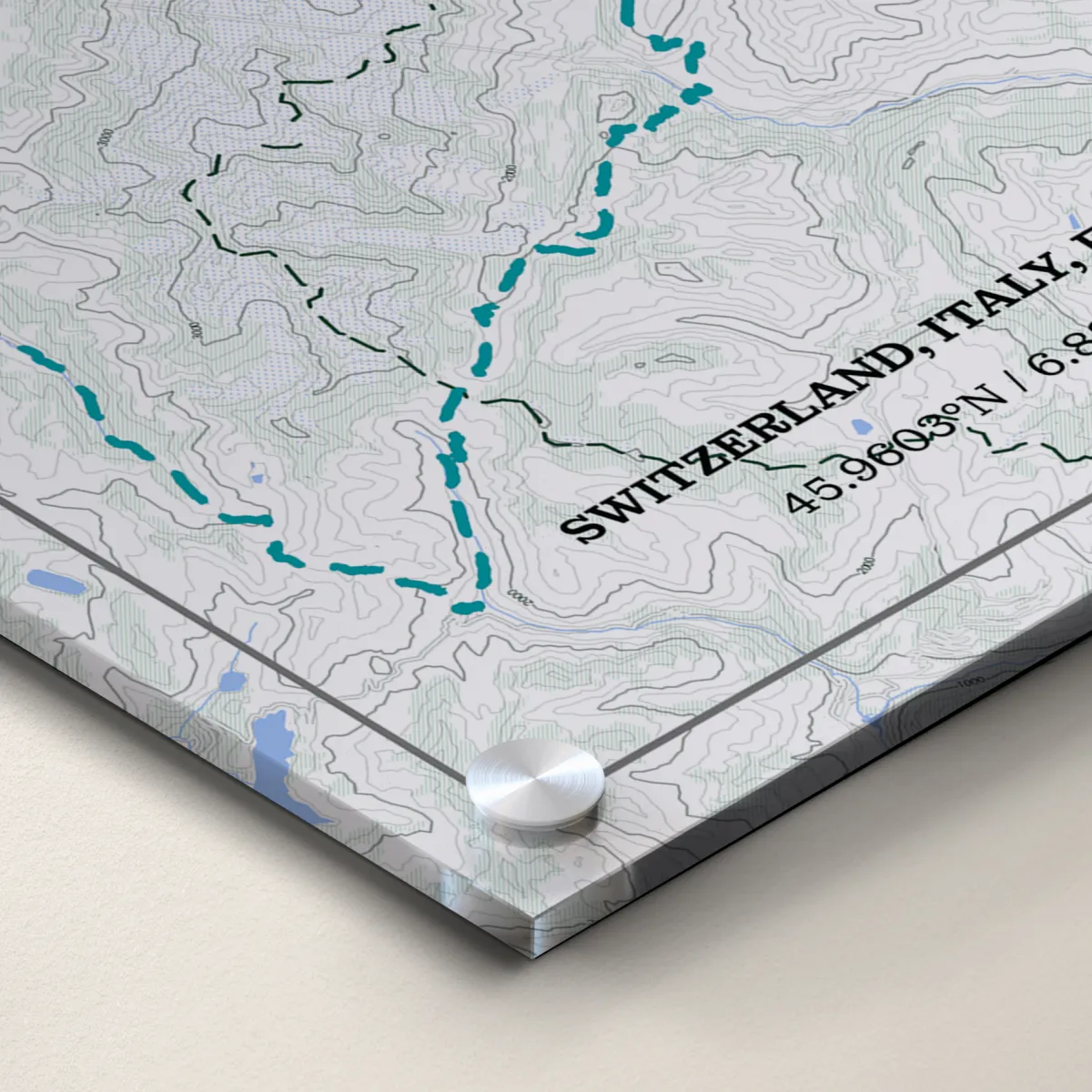
Walking Routes: Walking routes create walking paths from one point to another. We employ the use of real walkways and trails to make your map capture every step you took, whether it was from home to your favorite coffee shop or up the peak of Mount Everest.
Please note that if our system returns an error message upon attempting to create a certain type of route, then the route you selected is impossible to map. A walking route from Beijing to New York City, for example, cannot be added to your map because there is no physical route to take between both places.
You can also upload your own route information, which you can do by clicking on the Upload button and choosing a GPX file to sync to your map.
Of course!
If you only set one location during the Set Location process, you can head over to Location and click on the Add another location option right below your initial location. In the popup, simply type in your additional location or drag and drop a pin on the map and repeat this process until you have added every location desired.
From there, head over to the Routes section in Location and toggle on the button for Connect Locations.
If you had already selected multiple locations previous to editing, simply head over to Location and then Routes, where you'll see the same Connect Locations button to toggle on.
We currently offer three route types:
Driving Routes: Driving routes display journeys from one place to another via car, making them perfect for mapping out road trips and other long-haul drives. Our system uses real traveling routes, including roads and highways, to create a perfect, accurate map.
Airplane Routes: Airplane routes display lines from one destination to another as taken by airplanes. Our flight routes are 100% accurate and display real paths airplanes take.
Walking Routes: Walking routes create walking paths from one point to another. We employ the use of real walkways and trails to make your map capture every step you took, whether it was from home to your favorite coffee shop or up the peak of Mount Everest.
Please note that if our system returns an error message upon attempting to create a certain type of route, then the route you selected is impossible to map. A walking route from Beijing to New York City, for example, cannot be added to your map because there is no physical route to take between both places.
You can also upload your own route information, which you can do by clicking on the Upload button and choosing a GPX file to sync to your map.
As much as you wish! By clicking on Layout, you can change your Layout Design, which lets you choose between ten options to aesthetically arrange your visual and textual elements.
Here, you can also choose to add or remove Margins, one-inch borders that create space between your gorgeous artworks and the edges of your desired material.
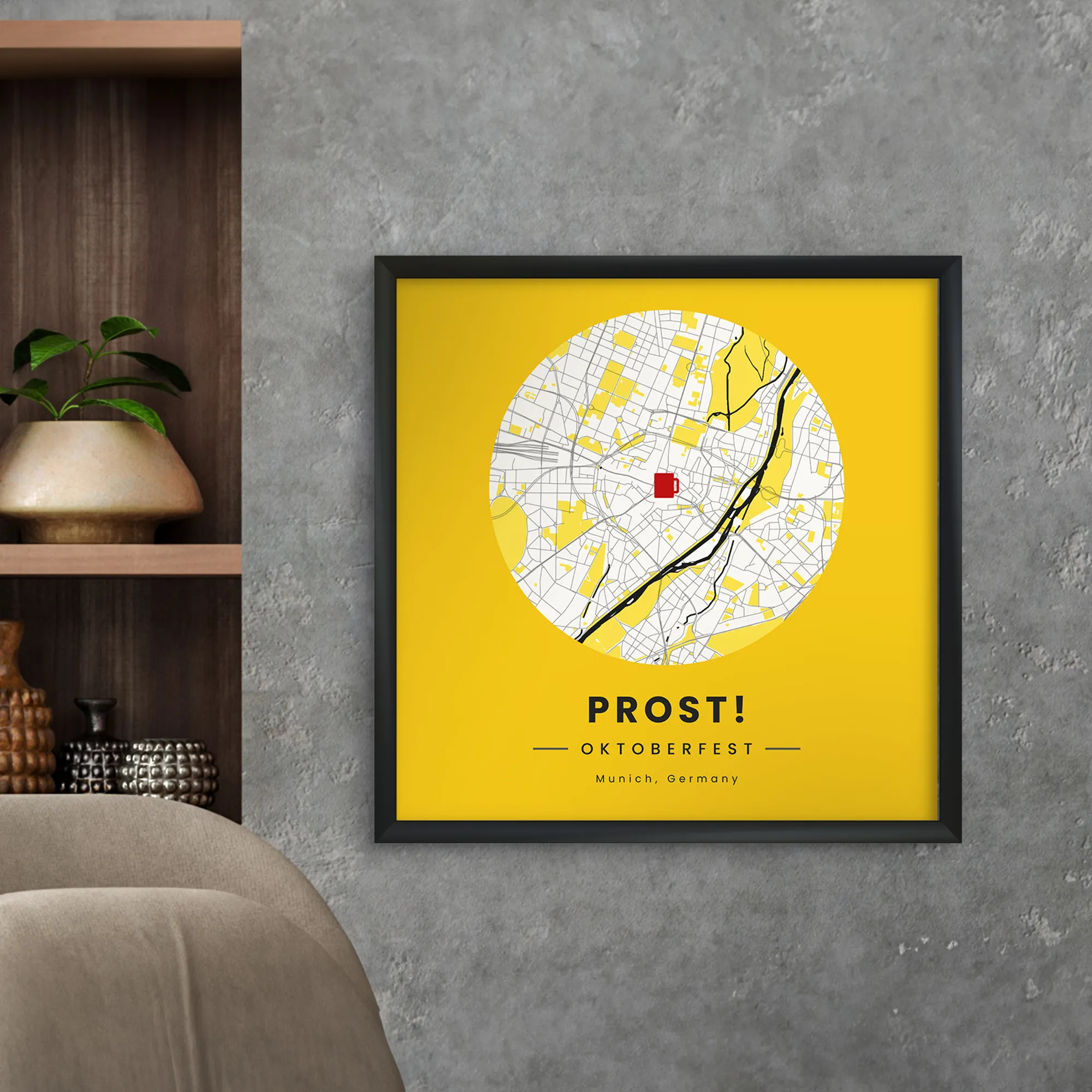
Additionally, you can pick Mask and Mask Options. Masks create shaped overlays for your design, including classic elements such as squares or circles, and more fun elements such as a skyline, planet, heart, or forest. Mask Options are essentially frames for your Masks, allowing you to further decorate your designs.
Keep in mind, however, that some masks, such as Forest and Skyline, don't support mask options and some Layout Designs, such as Pantomine, don't support masks.
As much as you wish! By clicking on Layout, you can change your Layout Design, which lets you choose between ten options to aesthetically arrange your visual and textual elements.
Here, you can also choose to add or remove Margins, one-inch borders that create space between your gorgeous artworks and the edges of your desired material.
Additionally, you can pick Mask and Mask Options. Masks create shaped overlays for your design, including classic elements such as squares or circles, and more fun elements such as a skyline, planet, heart, or forest. Mask Options are essentially frames for your Masks, allowing you to further decorate your designs.
Keep in mind, however, that some masks, such as Forest and Skyline, don't support mask options and some Layout Designs, such as Pantomine, don't support masks.
Yes, you can format both the size and orientation of Wall Art. If you want to change the size or orientation of your Wall Art, we recommend doing so before getting into the details of style. This way, you can see how the text will appear and figure out if that is the right size and shape for your project.
Yes, you can format both the size and orientation of Wall Art. If you want to change the size or orientation of your Wall Art, we recommend doing so before getting into the details of style. This way, you can see how the text will appear and figure out if that is the right size and shape for your project.


I had a few difficulties when I first started using MixPlaces app, but after reaching out for help, I was able to figure it out. It's a good app, probably the BEST when it comes to street maps, but it could benefit from better instructions. It gets 5 stars because I appreciated customer service and the products are beautiful.